Integrating Zoom on the Knot Platform Guide
Connect Zoom with Knot to schedule online meetings, automate bookings, and manage virtual appointments with an easy step by step integration guide.
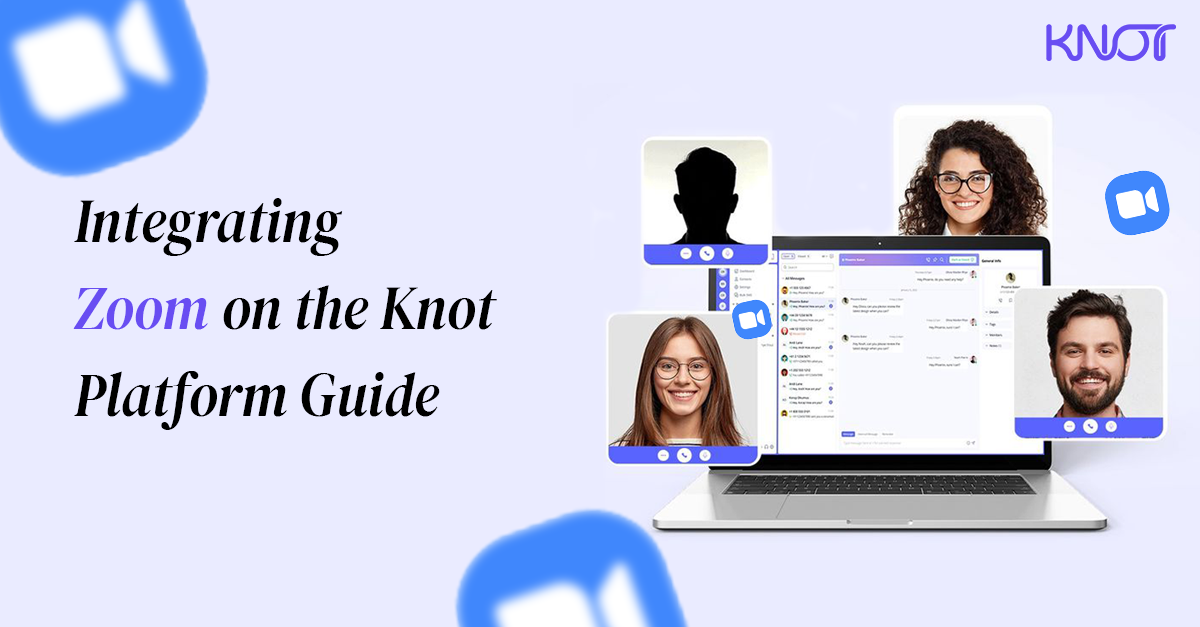
Knot event scheduling software leverages Zoom integration that offers a seamless meeting transition to the platform.
This facilitates the easy conduct of meetings, webinars, appointments, and chats.
This guide highlights the straightforward integration and removal of Zoom Communications from Knot.
How to Integrate Zoom Using Knot?
Built for modern teams
Learn more about MeetKnot and why thousands of professionals trust us with their schedules.
First and foremost, you need to log in to your Knot account, and for the rest of the setup, here’s what needs to be done.
1. On the left panel, click on Integration & Apps >> Connect under the Zoom section.

2. Your Knot account will be linked with Zoom.

3. Now navigate to Scheduling >> Create New Event.

4. Fill in the necessary details that includes; Event Name, Description, and so on. You can refer to our extensive guide to Knot.
5. Under the Location & timezone section, select Zoom as your meeting platform.

6. Your new event that schedules your meeting on Zoom will be created. All you would have to do is share your Knot meeting link.

7. Now clients have to schedule their meeting using the Knot event link.

8. Fill in the name of the guest and email ID. Once done, click on “Schedule Booking.”

9. Now, on your dashboard on the left panel, click on Meetings >> Kebab Menu >> View.

10. Zoom meeting link has been created that will redirect you to the virtual meeting room.

And now you have successfully integrated Zoom into your Knot event, and all the meetings will be held on the selected virtual platform.
How to Remove Zoom Integration on Knot?
Removing Zoom integration in Knot is a much simpler and shorter process.
To disconnect Zoom integration with Knot, navigate to Integrations & Apps on the left panel.
There you will see that your Zoom is connected. Then click on “Managed.”

Now click on “Disconnect.” You will receive the pop-up confirming whether you want to go ahead with this action.

Click on “Disconnect.”

You have now successfully disconnected Zoom from Knot. From this point onward, new meetings will no longer be scheduled using Zoom.